Open incoming VPN firewall ports
- Login to DM1 as the administrator if necessary.
- Type control into the Type here to search field
- Select the Control Panel app
- Click System and Security
- Click the Allow an app through Windows Firewall link
- Put a check mark in the box to the left of the Routing and Remote Access app
- Put check marks in the Domain, Private and Public boxes to the right of the Routing and Remote Access app
- Click OK
- Close the Control Panel
- Step Replacement: Replace the step as written in the book with the following:
- Sign onto ServerSA1-yourinitials as the administrator
- Right click the Start menu
- Choose Network Connections
- Click Change adapter options
- Right-click Ethernet
- Click Disable
- Close the Network Connections window
- Step Replacement: Replace the step as written in the book with the following:
- Right click the Start menu
- Choose Network Connections
- Click VPN
- Click + Add a VPN connection
- Step Replacement: Replace the step as written in the book with the following:
- Right click the Start menu
- Choose Network Connections
- Click Change adapter options
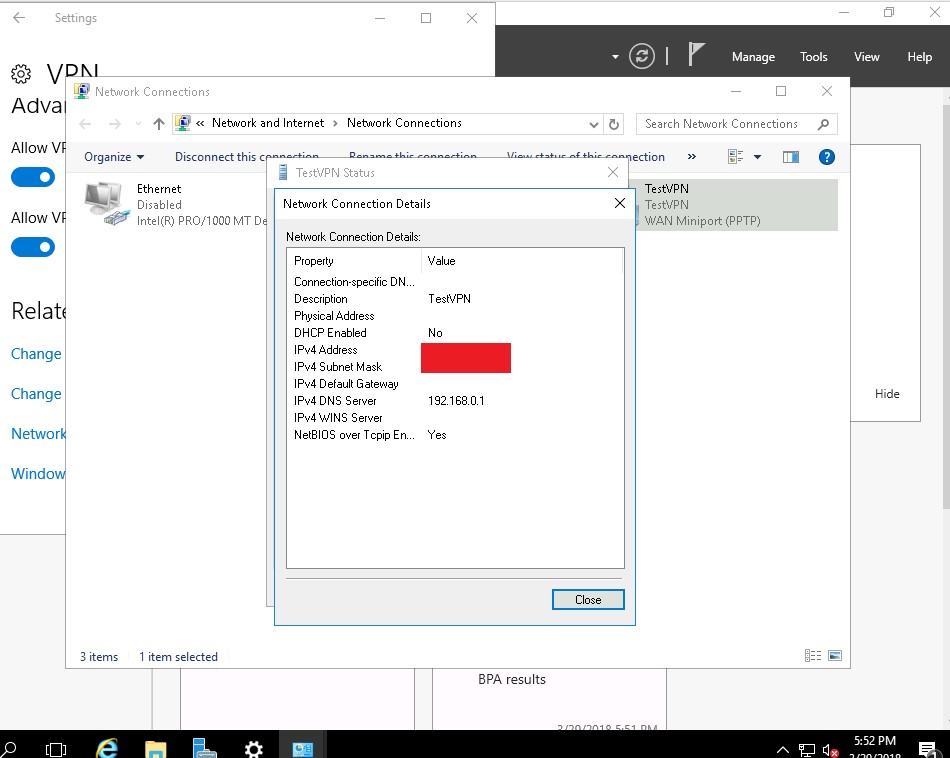
- Right-click TestVPN
- Click Status
- Click Details
- Take a screen shot, label it a6-1.jpg ( Example ) and upload it to the class web site
- Click Close twice
Previous Lab - Next Lab